How to Rename a File in Linux: The Ultimate Guide
Learn how to rename files in Linux using the mv command and rename utility. A complete guide with examples for single and batch renaming.

Sariful Islam
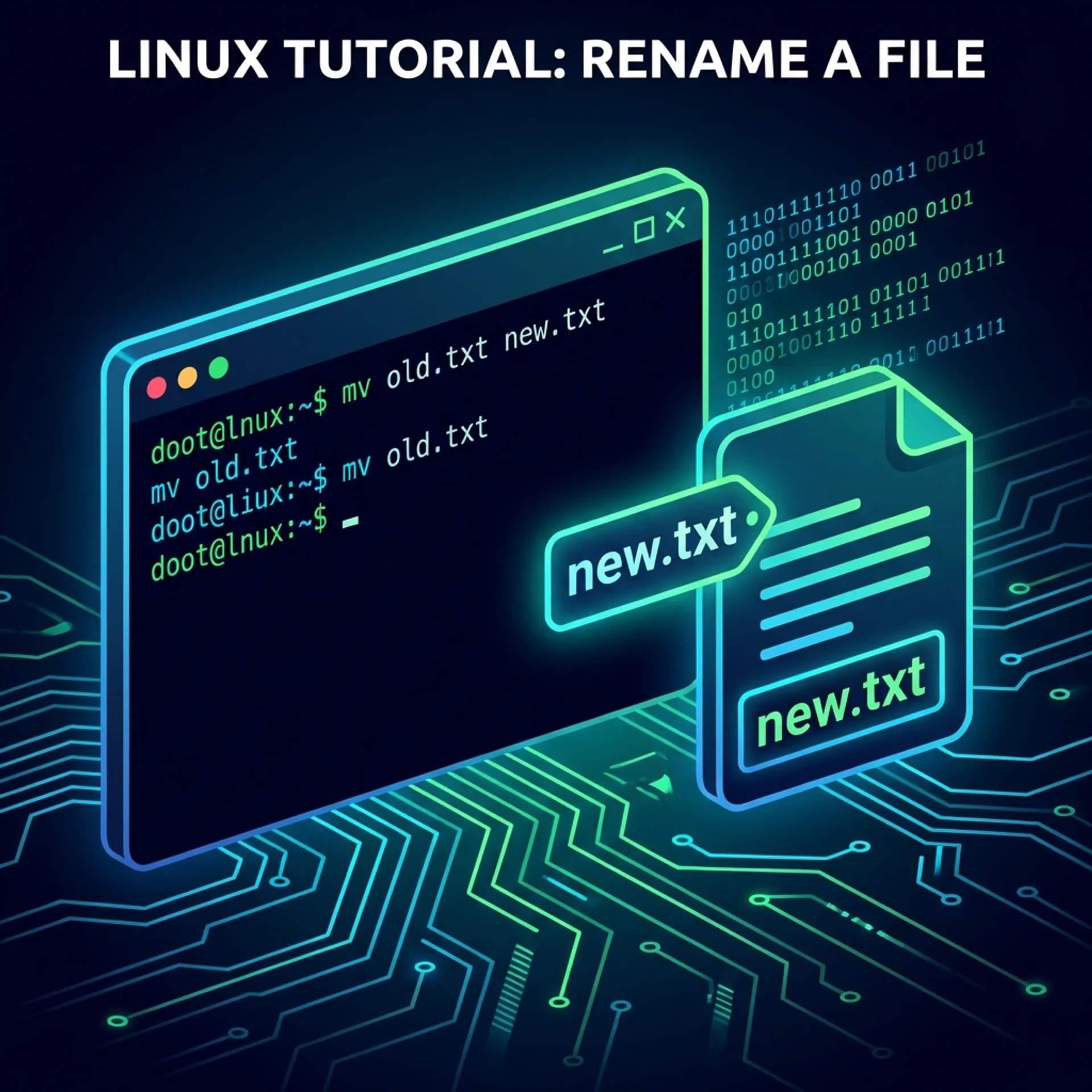
Renaming a file in Linux might sound like a basic task, but for beginners moving from Windows or macOS, the terminal can feel a bit mysterious. Where is the “rename” button?
In Linux, specifically the command line, we don’t just “rename” files; we move them. It is a concept that trips up many new users, but once you grasp it, it is incredibly powerful.
In this guide, I will walk you through exactly how to rename a file in Linux, from the standard mv command to powerful batch renaming tools that can change hundreds of files in seconds.
Step 1: The Standard Method (Using mv)
The most common way to rename a file in Linux is using the mv (move) command.
The Concept: Think of renaming not as changing a label, but as moving a file from “Name A” to “Name B”.
The Syntax:
mv old_filename new_filenameExample:
Let’s say you have a file named report_draft.txt and you want to rename it to report_final.txt.
mv report_draft.txt report_final.txtIf you list your files now (using ls), you will see report_draft.txt is gone, and report_final.txt is there.
Important: Overwriting Warning
Be careful! If report_final.txt already existed, mv would overwrite it without asking. To prevent this, use the interactive flag -i:
mv -i report_draft.txt report_final.txtThis ensures Linux asks for permission before replacing an existing file.
Step 2: Addressing the Target (Absolute vs. Relative Paths)
Just like deleting files, renaming depends on where you are in the system.
- Relative Path: If you are already in the folder, just use the filenames:
mv file1.txt file2.txt - Absolute Path: If you are renaming a file in a different folder, specify the full path:
mv /home/sariful/downloads/old.jpg /home/sariful/downloads/new.jpg
Step 3: Batch Renaming (The Power User Way)
What if you have 50 photos named IMG_001.jpg to IMG_050.jpg and you want to change them all to Vacation_001.jpg? Renaming them one by one with mv would take forever.
For this, we use the rename utility (often installed as perl-rename).
The Syntax: It uses a search-and-replace pattern (Regular Expressions).
rename 's/old_pattern/new_pattern/' filenamesExample:
To change “IMG” to “Vacation” in all .jpg files:
rename 's/IMG/Vacation/' *.jpgThis single command finds “IMG” in every filename ending with .jpg and replaces it with “Vacation” instantly.
Step 4: Renaming for Beginners (GUI Method)
If the terminal feels too daunting right now, don’t worry. Most Linux distributions (like Ubuntu, Linux Mint) come with a file manager (like Nautilus or Dolphin).
- Open your File Manager.
- Right-click the file you want to rename.
- Select Rename (or press
F2). - Type the new name and hit Enter.
It works exactly like it does in Windows!
Conclusion
Knowing how to rename a file in Linux is a foundational skill. Whether you stick to the simple mv command for quick changes or master rename for bulk organization, you now have the tools to manage your files efficiently.
Start with mv, get comfortable with paths, and soon you will be navigating the Linux terminal like a pro.